How the change the color on your company profile
Step 1 - Go to settings
To change the color on your ocmpany profile you have to go to the settings for your company profile. You do so by first clicking on the name of your organization in the side menu on the left.

Then you click on the name of your organization in the side menu on the left.

Afterwards you'll click on the button Workspace in which your companys name also appears.

Step 2 - Change color
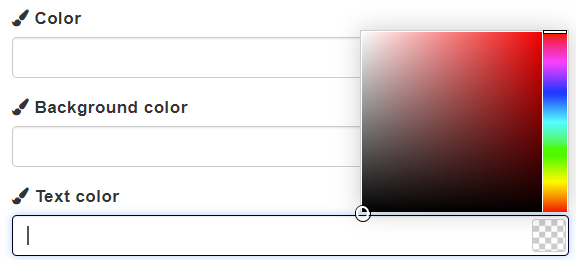
Now, it's possible for you to change Color, Background color and Text color. The way you change color works the same for all three options.
First, click on the field. Then a color field appears in which you can choose different colors by scrolling up and down the bar on the right. Otherwise, you can also insert the color code for the color you want in the field yourself.
Step 3 - Save and update profile
After you've changed the desired color(s) you click on the Save and update profile.

Afterwards, a pop up will appear in the upper right corner saying that your organization has been updated.

The color(s) you've chosen will automatically be added to your GoodiePacks. If you want to change the color(s) in a GoodiePack you can read on how to do that in the following articles:
How to change the theme color on your goodiepack
How to change the text color on your goodiepack
How to change the background color on your goodiepack
Note: If you need help changing other things on your company profile you will find help articles right here.