How to change icon on your company profile
Note: The icon is the picture that is shown if the recipients save the GoodiePack to their home screen/start screen on their phone. Thereby, the link to the GoodiePack will be placed alongside the other apps the recipients have on their phone. When the recipient click on the icon the newst version of the GoodiePack will be opened in the browser on their phone. You have the opportunity to change the icon on the individual GoodiePacks and you can read how to do thaat right here.
Step 1 - Go to settings
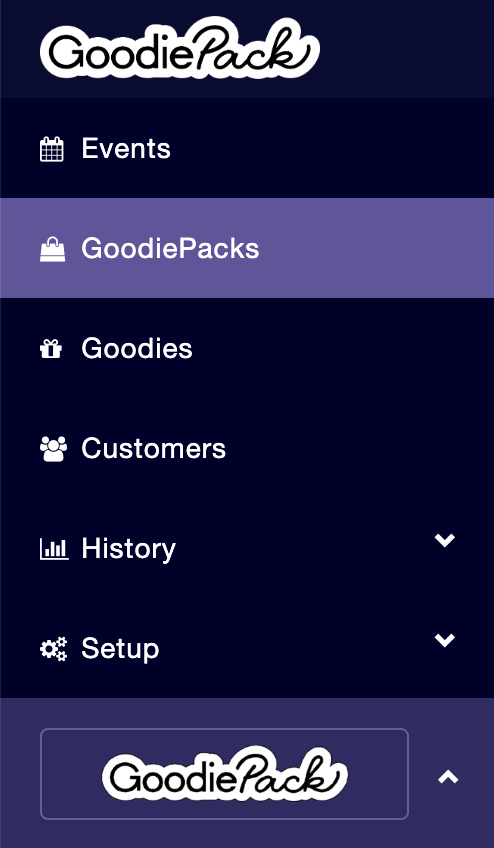
To change the icon you have to go to the settings of your company profile. You do that by first clicking on the name of your organization in the side menu on the left.

Then click on the name of your organization in the side menu on the left.
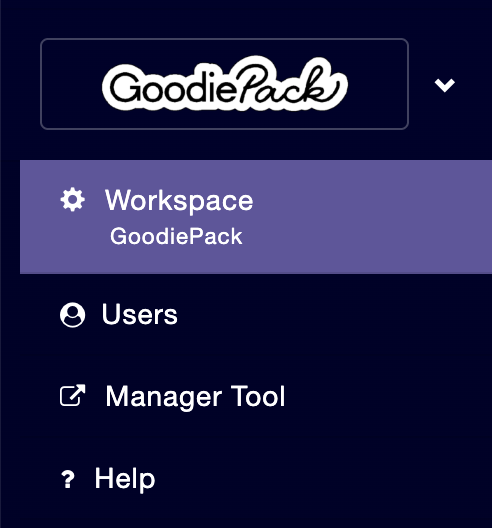
Now you have to click on the button that says Workspace and the name of your organization.
Step 2 - Change icon
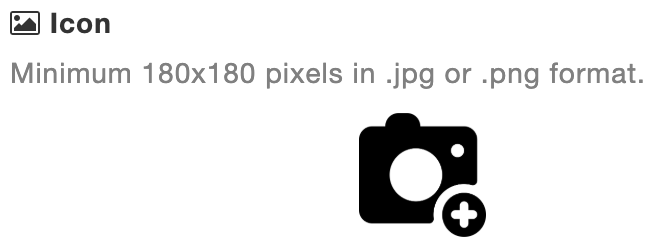
You've now reached the settings of your company profile. To change the icon on your company profile you have to click the camera in the middle of the page below Icon.
Then you upload an image from your computer. The image you choose has to be at least 180x180 pixels in .jpg or .png format.
Step 3 - Adjust image
You now have the opportunity to adjust the image you've chosen by moving it around and by zooming in and out so it fits with what you want to be visible.
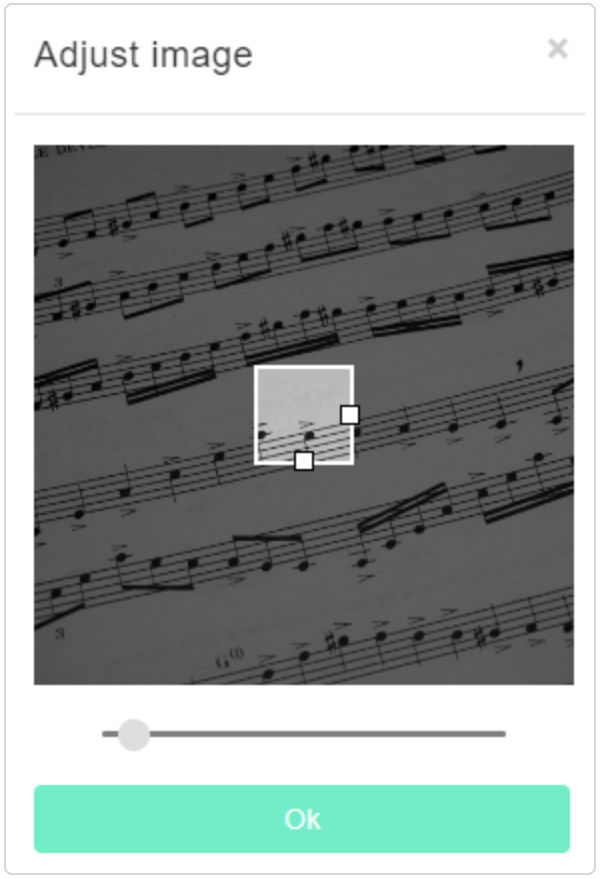
When you've adjusted the image you click on Ok.

Step 4 - Save and update profile
When you've uploaded and adjusted the image you want to use as an icon you must click on Save and update profile.

When you create a new GoodiePack this icon will automatically be added to the GoodiePack. If you've previously chosen another icon for the GoodiePack that icon will stay in the GoodiePack even though you've changed the icon on your company profile.
Note: If you need help to make other changes on your company profile you can click here and find help articles.