How to change logo on your company profile
Note: If you've added a logo to your company profile this logo will automatically be shown at the top of all your GoodiePacks, if you haven't uploadet another logo to the GoodiePack.
Step 1 - Go to settings
To change the logo on your company profile you have to go to the settings. You do that by clicking on the name of the organization in the side menu on the left.

Then, click on the name of the organization in the side menu on the left.
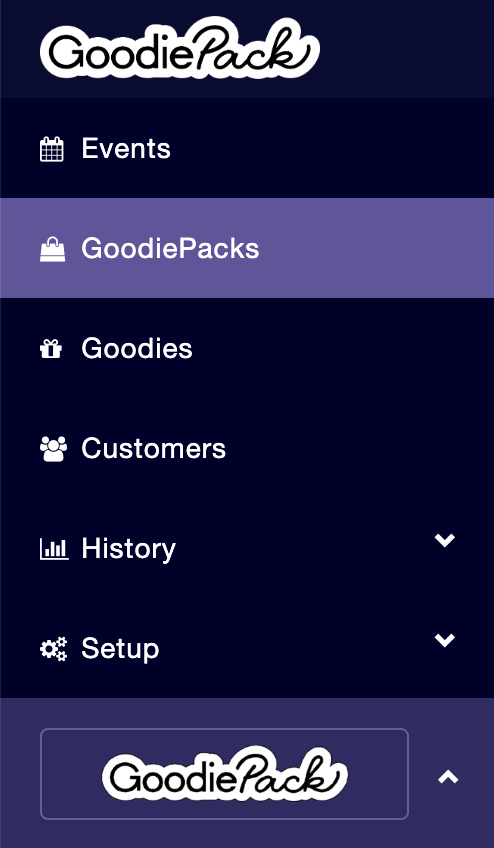
You then have to click on the button that says Workspace and the name of your organization.
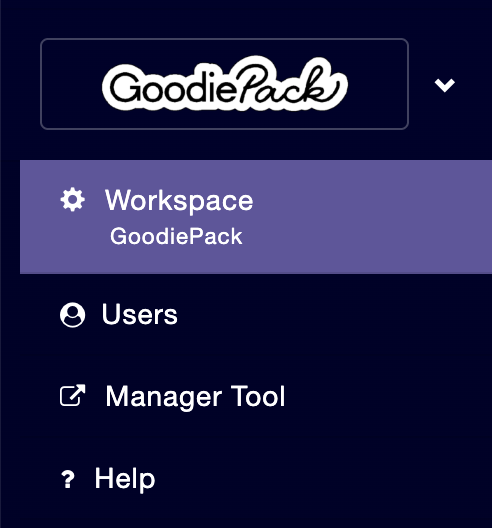
Step 2 - Upload logo
You upload a logo by clicking on the camera below Logo after which you choose an image you've saved on your computer. The image has to be a longitudinal image that is at least 100 pixels high i either .jpg or .png format.

Step 3 - Adjust image
You have the opportunity to adjust the chosen image by adjusting the height and width, moving the image around as well as zooming in and out so it fits with what you want to be visible in the logo.
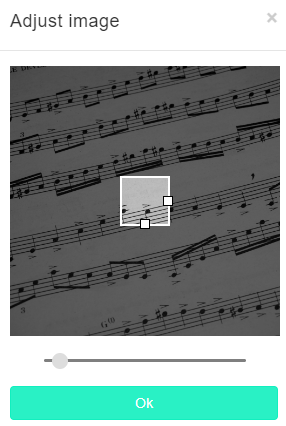
When you've adjusted the image you click Ok.

Step 4 - Save and update profile
When you've uploaded and adjustet the image to your liking, you click on Save and update profile.

Your logo will now appear in the side menu on the left where the name of your organization previously appeared as well as in the new GoodiePacks you create.