How to change the settings of your company profile
Step 1 - Go to settings
To change the settings of your company profile you first have to click on the name of your organization in the side menu on the left.

Then you have to click on the name of your organization in the side menu on the left.

Then you'll click on the button in the side menu on the left that says Workspace and the name of your organization.

Step 2 - Make the desired changes
You can now edit the settings and informations about the company/organization that you want to change. Here, you can change informations such as the company name and phone number.

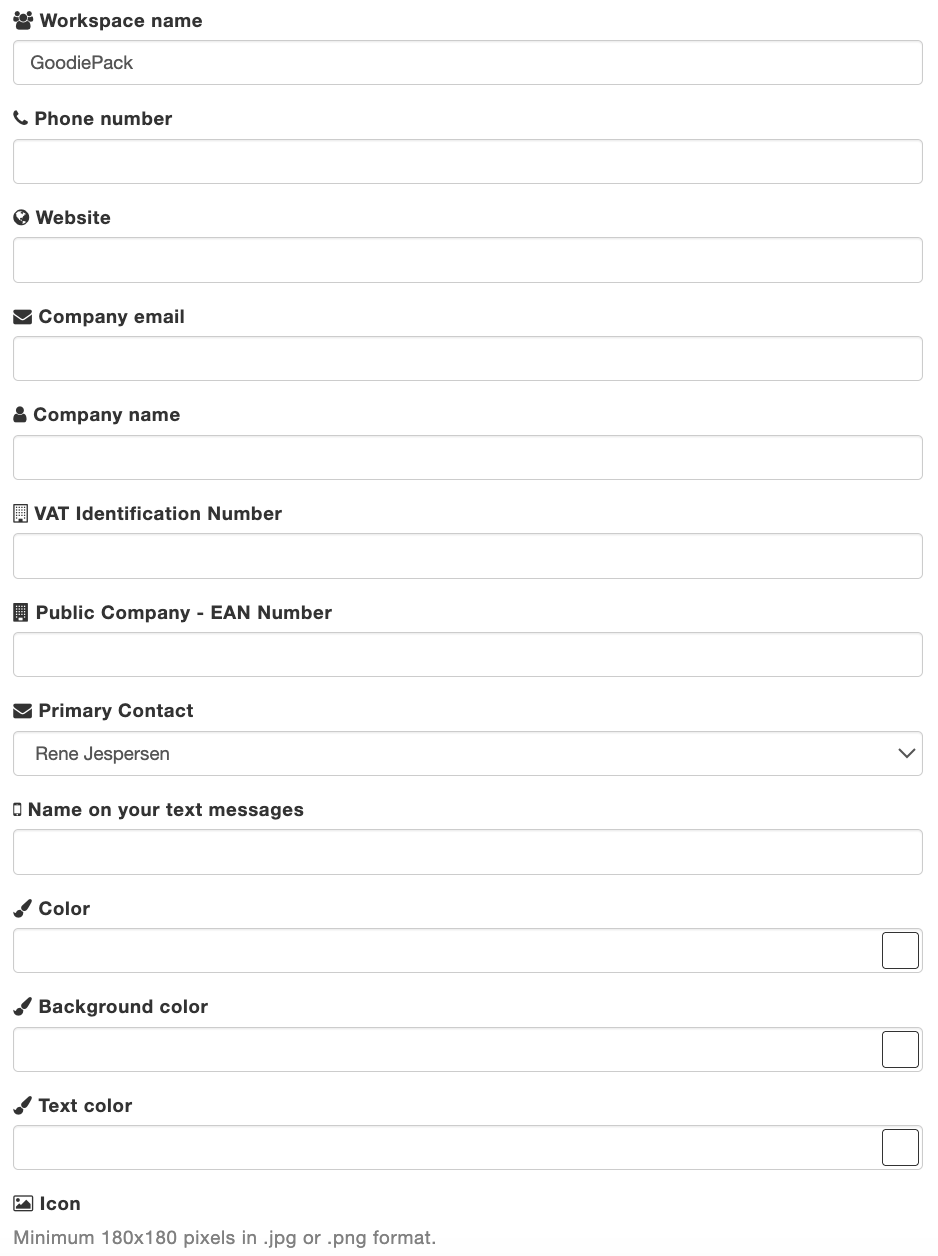
You can also change the color on your company profile. You can see how to do that in this article.
Further, you have the opportunity to change the logo and icon on your company profile which you can read about in respectively this and this article.
Step 3 - Save and update profile
When you've made the desired changes you have to click on Create user profile.